Reference
List of Shapes
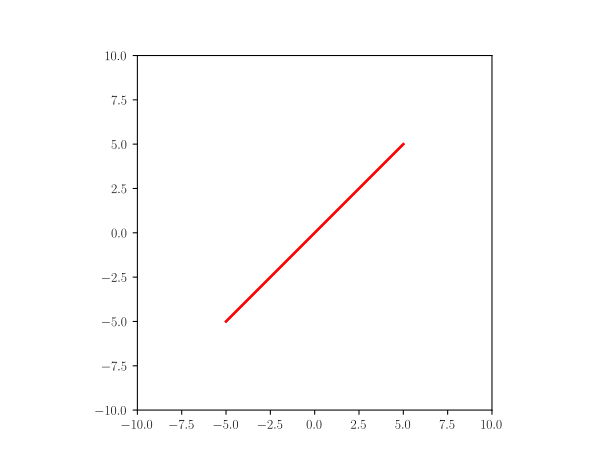
- Line: defines a line providing start and end point
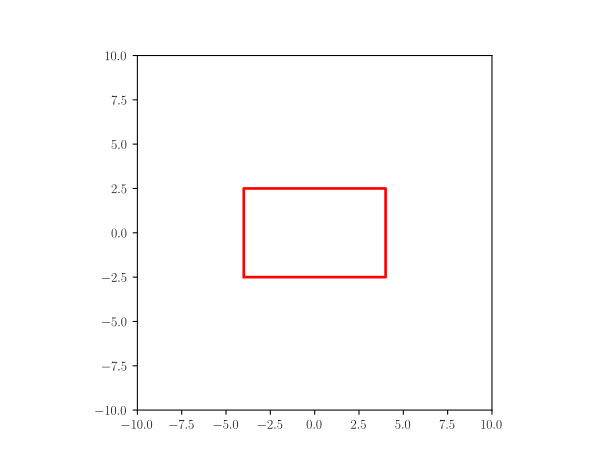
- Rectangle: defines a rectangle providing bottom left corner, x dimension, y dimension
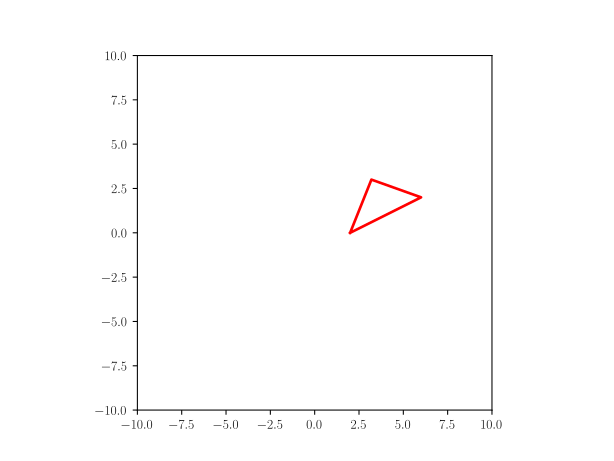
- Triangle: defines a triangle providing three corner
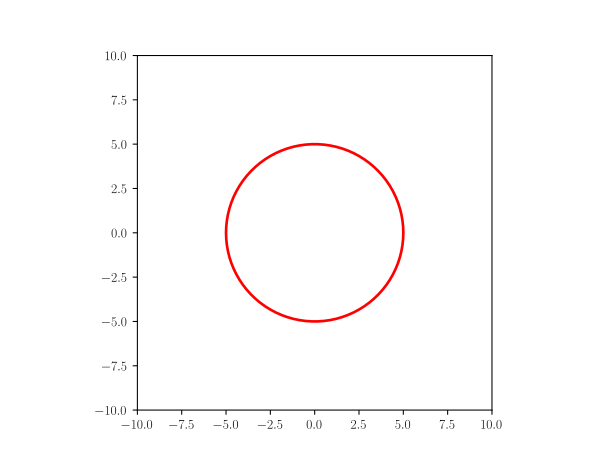
- Circle: defines a circle proving center and radius
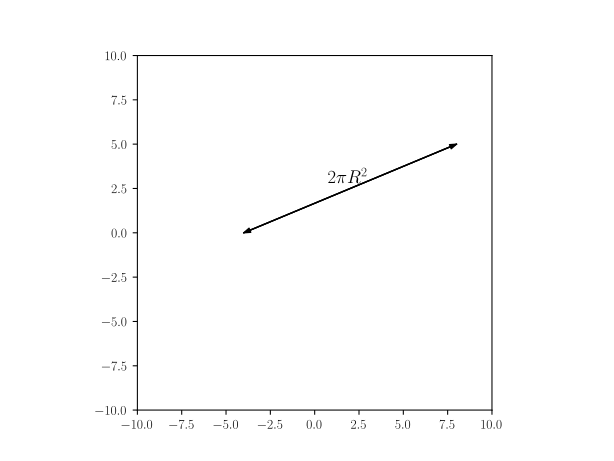
- Distance with text: defines a sizing mark with a label
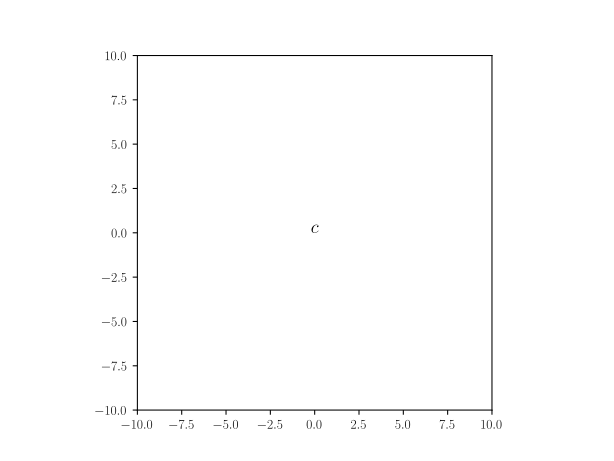
- Text: defines a given text positionned at the provided point
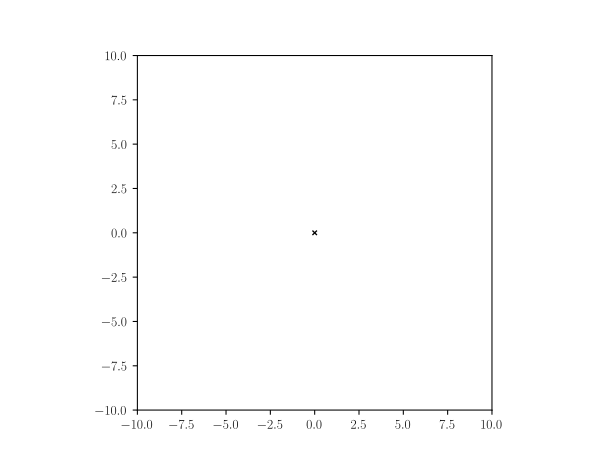
- Cross: defines a cross positionned at the provided point
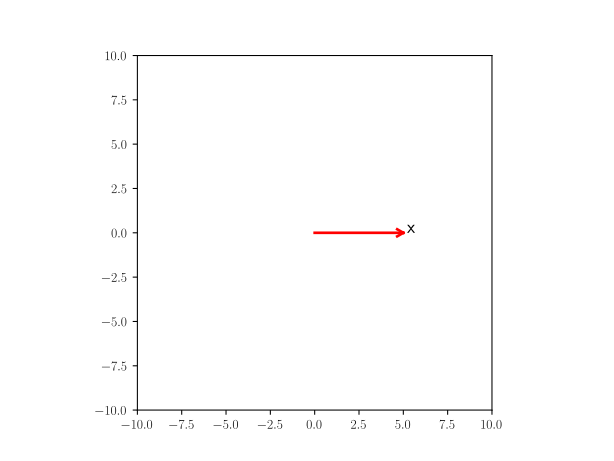
- Axis: defines an axis at the given point with a given label
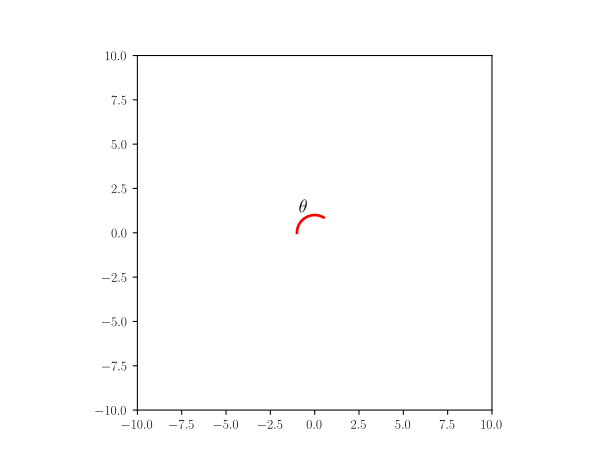
- Arc: defines an Arc providing a center point, a radius, a starting angle and an angle (rotates clock-wise)
- Arc_wText: defines an arc with text positionned left (moving clock-wise) of arc half-way
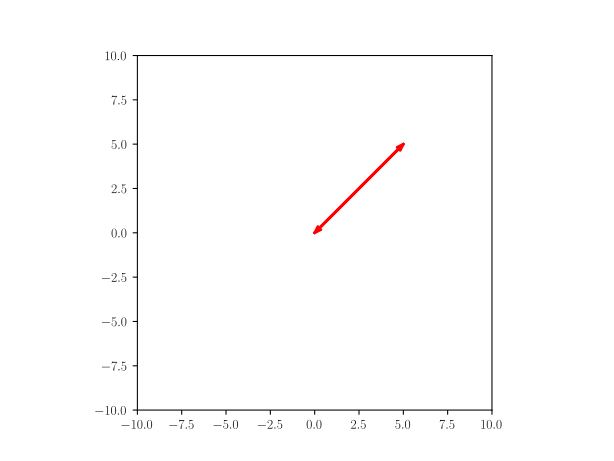
- Arrow1: defines a line with arrow(s) given starting and ending point and arrow termination(s) ->, \<->, \<-
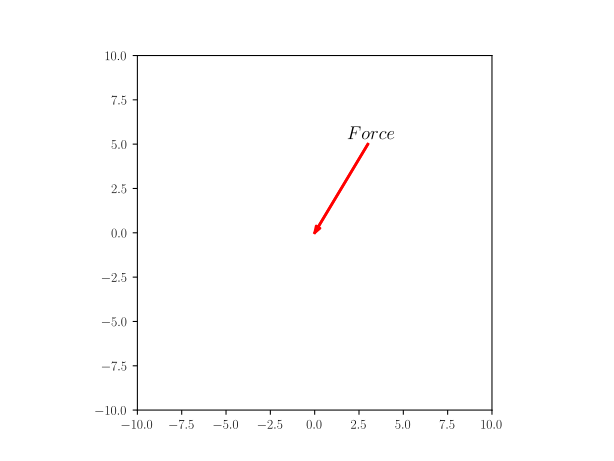
- Force: defines an Indication of a force by an arrow and a text (symbol)
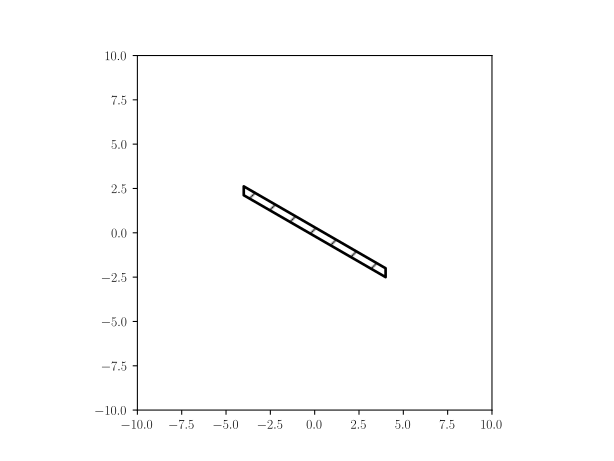
- Wall: defines an hached box given starting, ending point and thickness, filled with a pattern
Line
home Defines a line providing start and end point
Yaml
A: point(-5,-5)
B: point(5,5)
line: Line(A,B)
Python
A = point(-5,-5)
B = point(5,5)
line = Line(A,B)
Rectangle
home Defines a rectangle providing bottom left corner, x dimension, y dimension
Yaml
L: 8
h: 5
p: point(-(L/2),-(h/2))
rectangle: Rectangle(p,L,h)
Python
L = 8
h = 5
p = point(-(L/2),-(h/2))
rectangle = Rectangle(p,L,h)
Circle
home Defines a circle proving center and radius
Yaml
circle: Circle(point(0,0),5)
Python
circle = Circle(point(0,0),5)
Triangle
home Defines a triangle providing three corner
Yaml
L: 3.0
W: 4.0
triangle: Triangle(p1=(W/2,0), p2=(3*W/2,W/2), p3=(4*W/5.,L))
Python
L = 3.0
W = 4.0
triangle = Triangle(p1=(W/2,0), p2=(3*W/2,W/2), p3=(4*W/5.,L))
Distance with text
home Defines a sizing mark with a label
Yaml
fontsize: 14
t: r'$ 2\pi R^2 $'  # sample text
dwt: Distance_wText((-4,0), (8, 5), t, fontsize)
Python
fontsize=14
t = r'$ 2\pi R^2 $'  # sample text
dwt = Distance_wText((-4,0), (8, 5), t, fontsize)
Text
home Defines a given text positionned at the provided point
Yaml
text: Text(r'$c$', point(0,0))
Python
text = Text(r'$c$', point(0,0))
Cross
home Defines a cross positionned at the provided point
Yaml
cross: Cross(point(0,0))
Python
cross = Cross(point(1,0))
Axis
home Defines an axis at the given point with a given label
Yaml
axis: Axis((0,0), 5, 'x', rotation_angle=0)
Python
axis = Axis((0,0), 5, 'x', rotation_angle=0)
Arc
home Defines an Arc providing a center point, a radius, a starting angle and an angle (rotates clock-wise)
Yaml
center: point(0,0)
radius: 1
angle: 120
start_angle: 180-angle
arc_angle: angle
arc: Arc(center, radius, start_angle, arc_angle)
Python
center = point(0,0)
radius = 1
angle = 120
start_angle = 180-angle
arc_angle = angle
arc = Arc(center, radius, start_angle, arc_angle)

Arc_wText
home Defines an arc with text positionned left (moving clock-wise) of arc half-way
Yaml
center: point(0,0)
radius: 1
angle: 120
start_angle: 180-angle
arc_angle: angle
arc_wtxt: "Arc_wText(r'$<bslash>theta$', center, radius, start_angle, arc_angle)"
Python
center = point(0,0)
radius = 1
angle = 120
start_angle = 180-angle
arc_angle = angle
arc_wtxt = Arc_wText(r'$\theta$', center, radius, start_angle, arc_angle)
Arrow1
home defines a line with arrow(s) given starting and ending point and arrow termination(s) ->, \<->, \<-
Yaml
start: point(0,0)
end: point(5,5)
arrow1: Arrow1(start, end, style='<->')
Python
start = point(0,0)
end = point(5,5)
arrow1 = Arrow1(start, end, style='<->')
Force
home defines an Indication of a force by an arrow and a text (symbol)
Yaml
x: 0
y: 0
contact: point(x, y)
vector: point(-3,-5)
force: Force(contact - vector, contact, r'$Force$', text_pos='start')
Python
x = 0
y = 0
contact = point(x, y)
vector = point(-3,-5)
force = Force(contact - vector, contact, r'$Force$', text_pos='start')
Wall
home defines an hached box given starting, ending point and thickness, filled with a pattern
Yaml
theta: 30
L: 8
B: point(L-4,-2)                      # wall right end
A: point(-4,tan(radians(theta))*L-2)  # wall left end
wall:
    formula: Wall(x=[A[0], B[0]], y=[A[1], B[1]], thickness=-0.5,transparent=False)
    style:
        linecolor: black
Python
theta = 30
L = 8
B = point(L-4,-2)                      # wall right end
A = point(-4,tan(radians(theta))*L-2)  # wall left end
wall= Wall(x=[A[0], B[0]], y=[A[1], B[1]], thickness=-0.5,transparent=False)
wall.set_linecolor('black')
Code to display the above defined shapes
home In order to display the various shapes, use the following code in a jupyter notebook
[1]: %matplotlib widget
[2]: from pysketcher import *
[3]: from math import tan, radians, sin, cos # needed for python code
[4]: drawing_tool.set_coordinate_system(xmin=-10, xmax=10,ymin=-10, ymax=10,axis=True)
[5]: drawing_tool.mpl.gcf().canvas
for Yaml, you need to add those extra steps
head = """\
libraries: ["from math import tan, radians, sin, cos","from pysketcher import *"]
myfig={}
sketchParse(head,myfig)
The above code initialize myfig sketch space loading into it libraries references so samples can use tan, radians, si, cos and all the objects defined in pysketcher (the module name of jupytersketcher): this is used by the yaml definition of shapes
Yaml
myfig={}
sketch="""
# put here the yaml 'object' definition
"""
drawing_tool.erase()
sketchParse(sketch,myfig)
# replace 'object' by the actual one
d = myfig['object'].draw()
drawing_tool.display()
Python
drawing_tool.erase()
# put the code of the object case here
# replace object by the actual name line, rectangle, circle...
object.draw()
drawing_tool.display()